Connecting Your Essential Business Accounts
Connect your external platforms so messages, reviews, and calendars flow directly into COFFEE CRM.
For: Administrators
Time: 15 minutes
Before You Begin
- •Have your login credentials for Google, Facebook, and Stripe ready.
- •Ensure you are an Admin on your Facebook Business Page.
Instructions
1
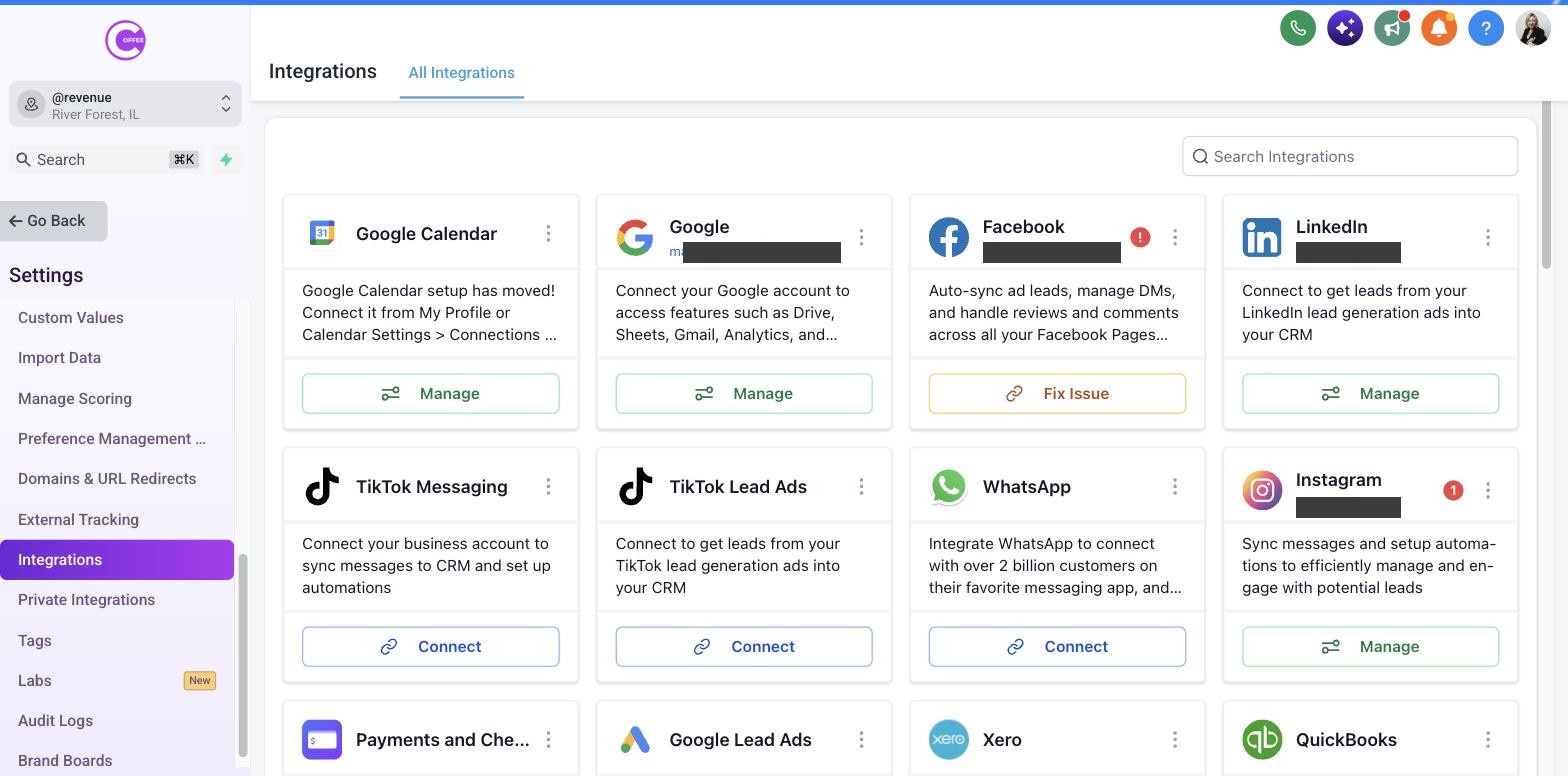
Navigate to Integrations
Click on Settings in the bottom left, then click on "Integrations".
2
Connect Google
Click "Connect" under the Google icon. Sign in with your Google account. This allows you to sync your calendar and manage Google My Business reviews.
3
Connect Facebook & Instagram
Click "Connect" under Facebook. Follow the prompts to authorize access to your business pages. This brings Facebook Messenger and Instagram DMs into your Conversations inbox.
4
Connect Stripe (Optional)
If you plan to take payments or send invoices through COFFEE CRM, click "Connect" under Stripe and log into your Stripe account.
What Success Looks Like
- Google is showing as "Connected".
- Facebook/Instagram is showing as "Connected".
Common Mistakes
- × Connecting a personal Facebook profile instead of the Business Page.
- × Not granting all requested permissions during the Google authorization step.
Troubleshooting
If Instagram DMs are not showing up:
You must ensure your Instagram account is a "Professional" or "Business" account and is properly linked to your Facebook Business Page in Facebook settings.
Last updated: 10/1/2026