Completing Your Business Profile
Configure your company's foundational information so that calendars, emails, and compliance features work correctly.
For: Administrators
Time: 15 minutes
Before You Begin
- •Gather your official company address and support contact details.
Instructions
1
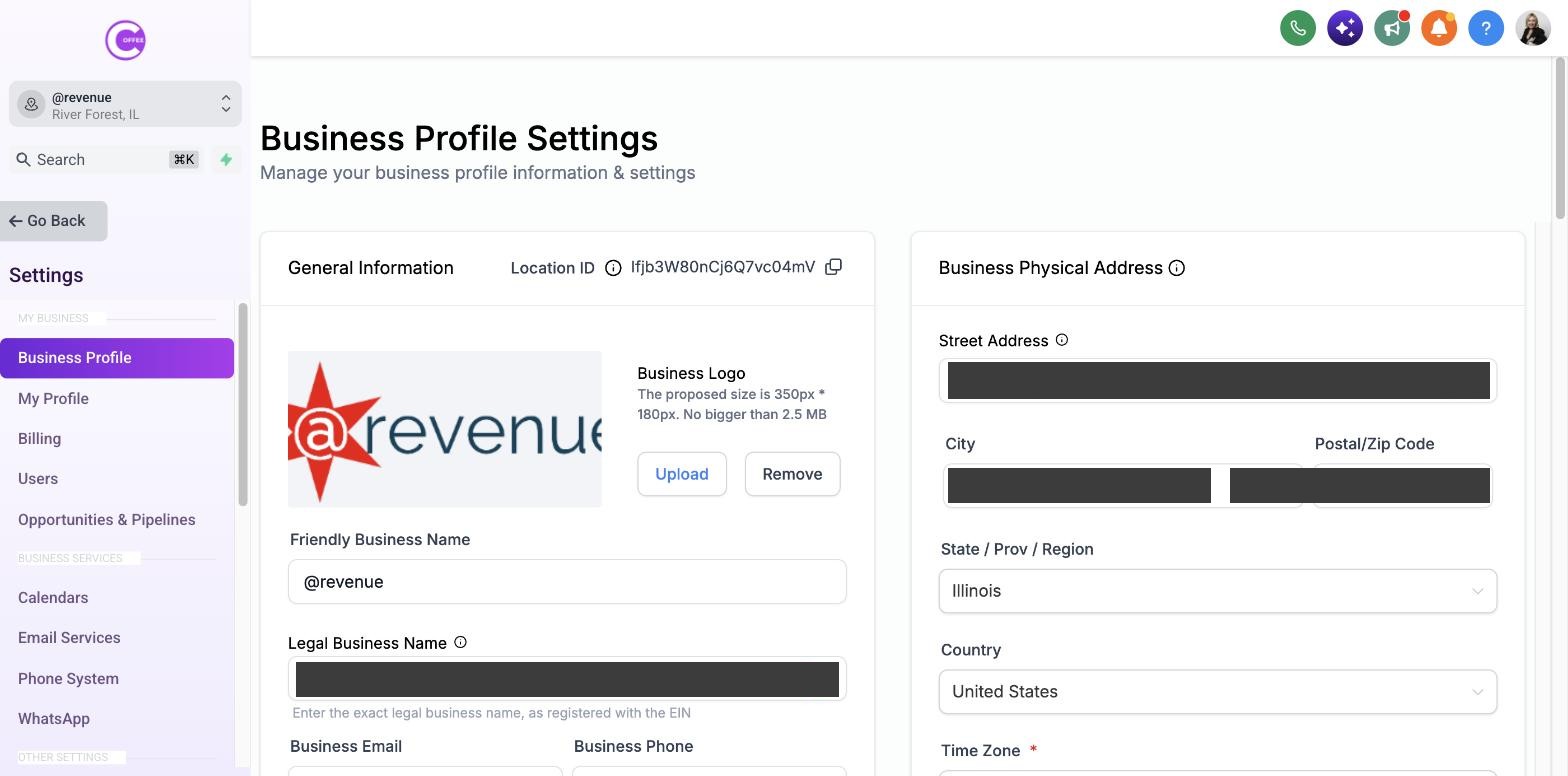
Go to Business Profile
Click on Settings at the bottom of the left menu, then select "Business Profile".
2
Enter Company Information
Fill in your company name, email, phone number, and website. This information is often used dynamically in email footers for compliance.
3
Set the Correct Timezone
Scroll to the "Business Information" section and ensure your timezone is perfectly accurate. This dictates how your calendars and automated messages operate.
4
Upload Your Logo
Click the logo placeholder at the top left of the profile settings to upload your company logo.
What Success Looks Like
- Business name and address are complete.
- Timezone is accurately set.
- Company logo is uploaded.
Common Mistakes
- × Leaving the timezone on the default setting, causing appointments to sync incorrectly.
Troubleshooting
If You cannot edit the fields:
Your available options may differ based on your COFFEE CRM plan and user permissions. You must be an Admin to edit the Business Profile.
Last updated: 10/1/2026