Updating Your Personal Profile
Ensure your personal details, password, and email signature are correctly configured.
For: All Users
Time: 10 minutes
Instructions
1
Navigate to My Profile
Click on Settings at the bottom of the left menu, then select "My Profile".
2
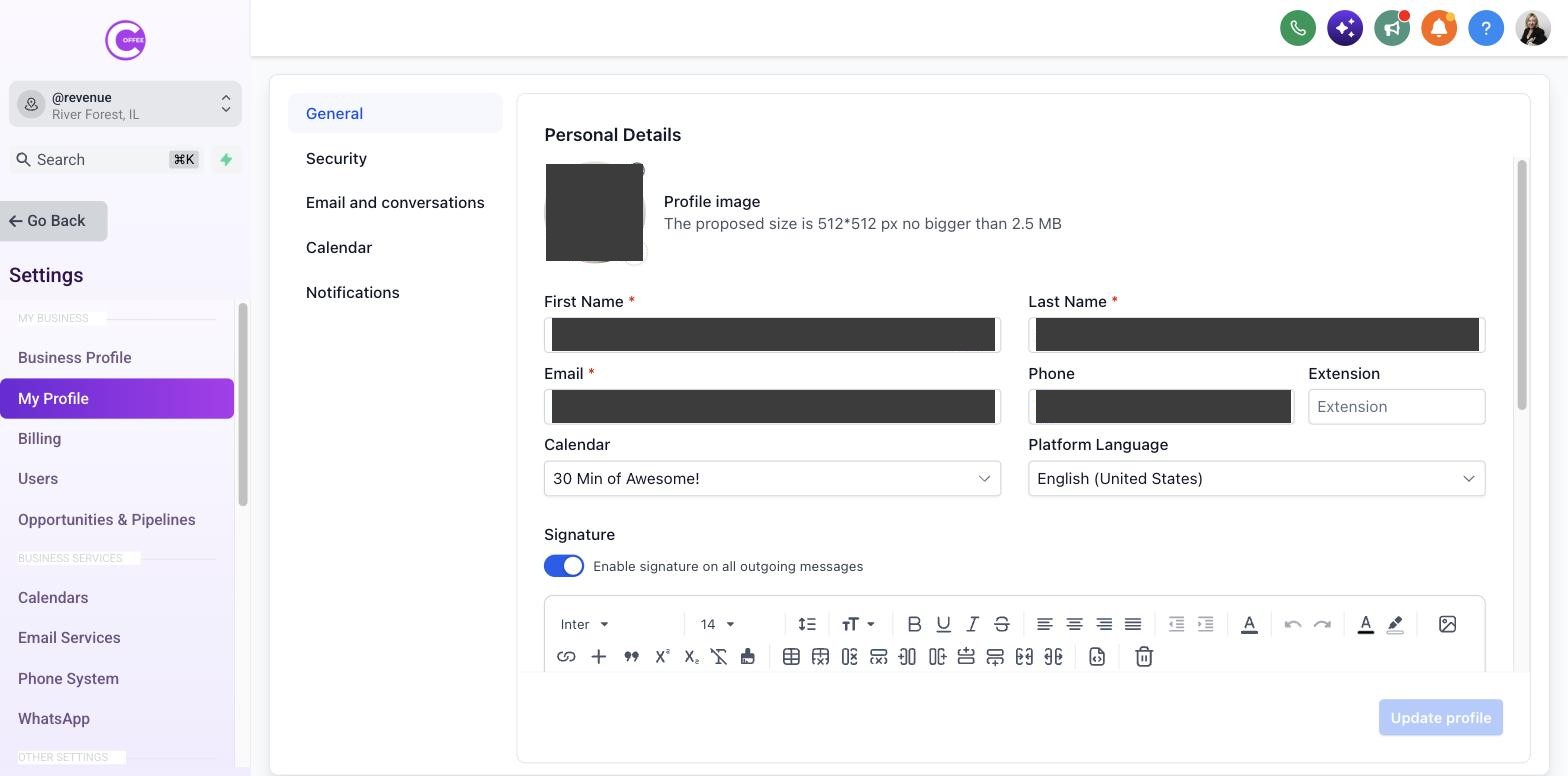
Update Your Basic Info
Enter your first name, last name, phone number, and email. You can also upload a profile picture which will be visible internally.
3
Set Your Email Signature
Scroll down to the "Email Signature" section. Type your signature or paste it from your email client. Check the box to "Enable Signature on all outgoing messages" if you want it applied automatically.

4
Change Your Password
In the User Password section, you can update your password. We recommend using a strong, unique password.
What Success Looks Like
- Your name and contact info are correct.
- Your email signature is saved and enabled.
Common Mistakes
- × Forgetting to click "Update" or "Save" at the bottom of the page after making changes.
Last updated: 10/1/2026