Your First 30 Minutes in COFFEE CRM
Complete the essential foundation of your account so you can start using the CRM.
For: Administrators and Business Owners
Time: 30 minutes
Before You Begin
- •Ensure you are logged in with Admin permissions.
Instructions
1
Update Your Business Profile
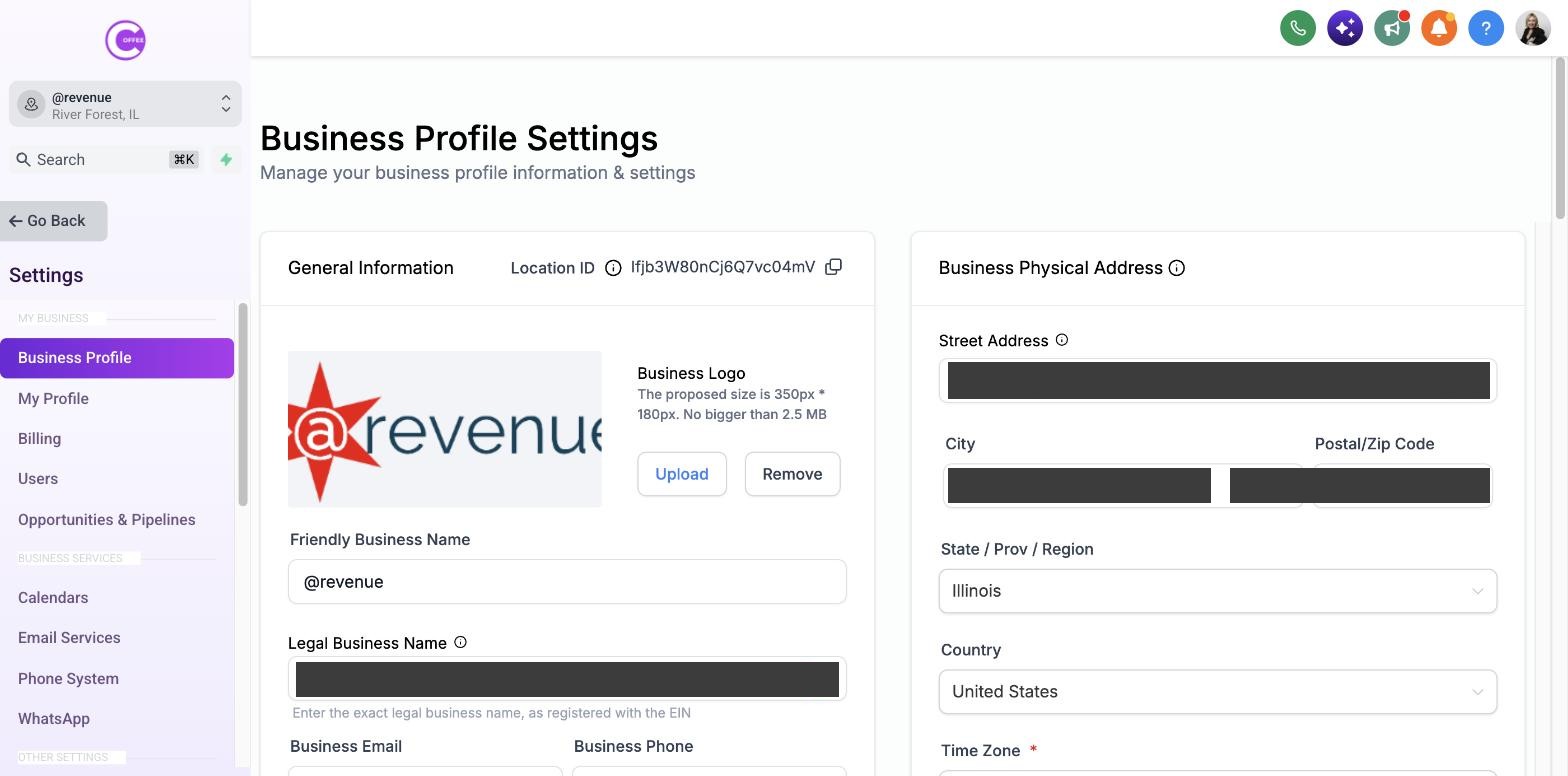
Navigate to Settings > Business Profile. Fill out your company name, address, timezone, and upload your logo. This information is used across your account for compliance and branding.
2
Connect Your Calendar
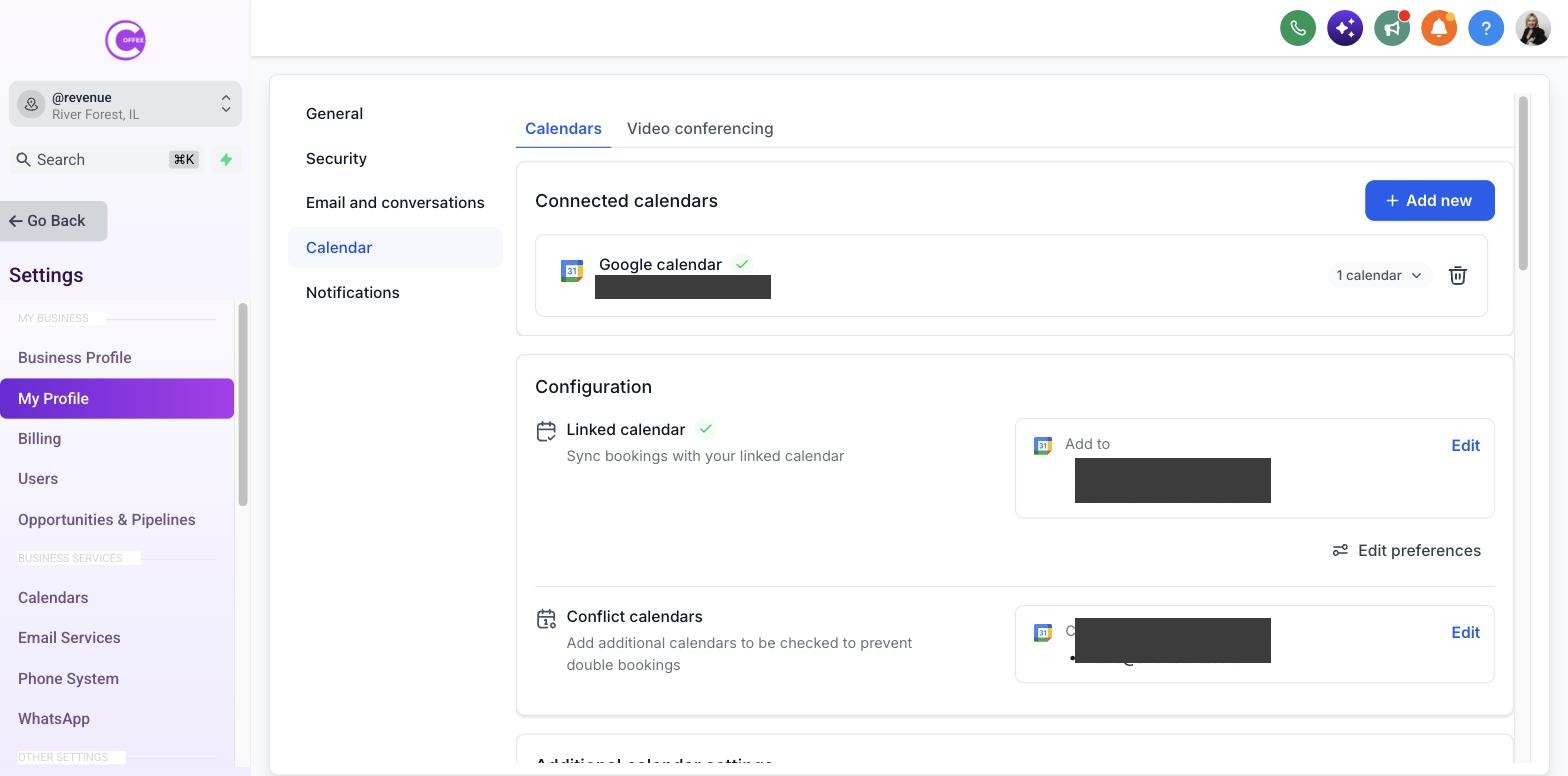
Go to Settings > Integrations (or Settings > My Profile > Calendar) and connect your Google or Outlook account. This ensures appointments sync correctly and prevents double-booking.
3
Download the Mobile App
Search for the COFFEE CRM companion app in your device's app store. Log in with your COFFEE CRM credentials to manage conversations on the go.
[SCREENSHOT NEEDED: Mobile App Login Screen]
What Success Looks Like
- Your business details are accurate.
- Your primary calendar is connected.
- You have the mobile app installed.
Common Mistakes
- × Skipping the timezone setting, which can cause appointments to be booked at the wrong time.
Troubleshooting
If You don't see the Settings menu:
Your available options may differ based on your COFFEE CRM plan and user permissions. Contact your account administrator to request access.
Last updated: 10/1/2026